Tuesday, October 18, 2011

How to add a ± symbol?

Hello everyone.... I am back... Its been a long time and a lot has happened since June this year. But now I will make sure I am regular contributor :)

Will start with a very small post today. How to add a ± symbol in an excel cell.

Basically this is a symbol which we use in financial & statistical data. To add ± in any cell go to Insert Tab on the ribbon & then click on Symbol from the text group.


From the symbol window, you can select the plus minus symbol. You can find this symbol under the Latin -1 Supplement subset. Once you spot the symbol, select it and then click Insert.


Saturday, June 4, 2011

Mini Toolbar

Excel 2007 adds a mini toolbar just above the menu which open when you right click on any cell. This mini toolbar draws useful commands from the Ribbon.

Saturday, April 16, 2011

Automatic Calculations

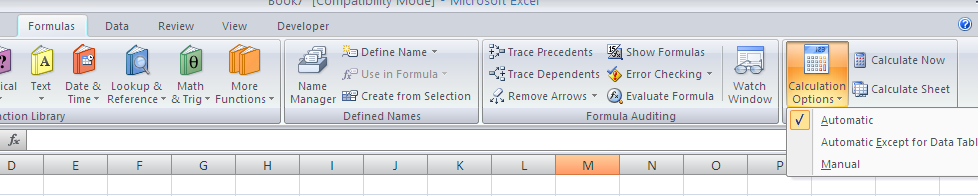
By default an Excel sheet calculates the formula result automatically. This is indeed a great feature with the user only need to worry about the values in the cell, and any change in these values result in changes in the formula result  by its own.


Saturday, April 9, 2011

How to remove Data Validations


There are multiple ways to do it and probably the simplest is to copy and paste an empty cell over the cell which contains the data validation. However if you just want to clear the data validation leaving the data & the format intact. Use the Clear All button on the Data Validation dialog box.


Sunday, March 13, 2011

How to remove duplicates

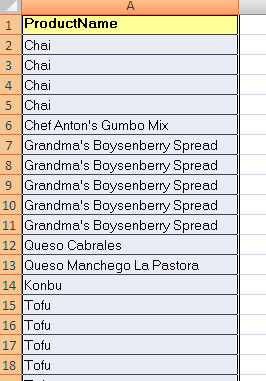
Lets start with the original data which contains the duplicate values. Similar to one shown below


First select the entire data including the header row.


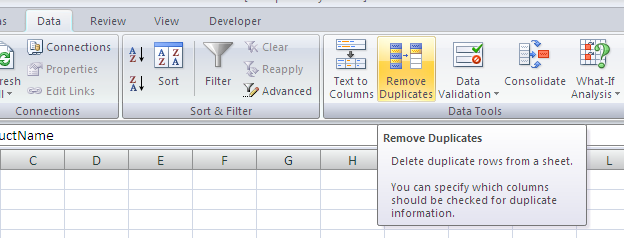
Now go to the Remove Duplicate command which is available on the Data tab of the ribbon


Select the column header from which you want to remove the duplicates, then click ok.


That is it, the duplicates have been removed. You will be shown a message showing how many duplicates have been removed and how many unique values remain.


Saturday, February 12, 2011

Quick Tip - How to format Heading rows in one click!

If the Format as Table option formats the entire data and does not suits your requirement to only format the heading row leaving the data intact, follow these steps to quickly format only the heading rows.

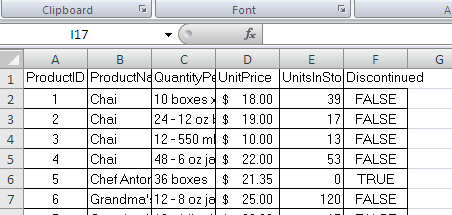
E.g. this is your data


Select the heading row and click on the Cell Styles drop down (available on Styles group of the Home tab).


Now select the format which looks presentable to you.


And that is it!!!