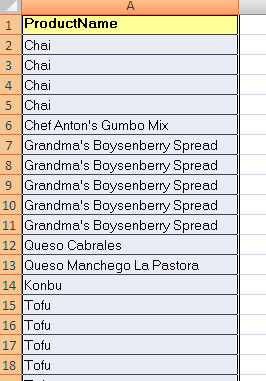
I am sure you have faced a situation where the data has been copied out of a pivot table, which looks like this


Many a times there is a need that you fill up the empty cells under a section with the same values. Like in the above example you need ABC in row number 2 to 5 and BCD in row number 8 to 11. There are many ways to accomplish this, with Copy - paste, Ctrl + D, Using power utils add in to name a few.
There is a way using formulas and selecting visible cells. To use this way apply the formula in the first empty cell (A3 in our case). The formula should pick up the value from the cell above to it. In our case A3 should contain a formula "=A2".

Follow these steps to fill all the empty cells with the contents which appear once in the section.
- Copy the cell in which the formula is applied.
- Apply an auto filter on the same column. Select all the empty cells that come as a result.
- Filter for the blank cells, press "Ctrl +G". From the Go To dialog box, click on "Special". From the "Go To Special: dialog box select "Visible Cells only" and then click "OK". This will leave only the empty cells which are below the section text.
- Now paste the formula which you have copied. And all the empty cells will be filled with the section text.